
How to Help Prevent the Blue Screen of Death (BSOD) on Your PC
Few things are more frustrating than seeing your computer suddenly crash to a blue screen with an error message that causes extensive research and troubleshooting. Commonly known as the Blue Screen of Death (BSOD), this issue usually signals a serious problem with hardware, drivers, or Windows itself.
The good news? Many BSODs are preventable. It’s best when things start acting up or unfamiliar error begins to occur to make note and contact G2 Computer Care right away. In the meantime, below are practical, real-world steps you can take to reduce the chances of blue screen crashes and keep your PC running reliably.
1. Keep Windows Fully Updated
Microsoft regularly releases updates that fix bugs, patch security holes, and improve system stability.
What to do:
- Enable automatic Windows Updates
- Restart your PC when updates are pending (don’t delay for weeks)
- Avoid interrupting updates while they’re installing
Outdated system files are one of the most common contributors to BSOD errors.
2. Update (and Limit) Device Drivers
Faulty or incompatible drivers are a leading cause of blue screens—especially graphics, chipset, network, and storage drivers.
Best practices:
- Update drivers directly from the manufacturer (Intel, AMD, NVIDIA, Dell, HP, etc.)
- Avoid “driver updater” software—they often cause more problems than they fix
- If a blue screen starts after a driver update, roll it back
Stability matters more than being on the newest version. We can manage your PC either remotely or in person. You can call 303.514.4632 or make an Appointment!
3. Watch Your RAM (Memory)
Bad or mismatched memory modules can cause random crashes that are difficult to diagnose. Additional third-party drivers and other antivirus third-party antivirus also causes additional memory usage.
Tips:
- Avoid mixing different brands or speeds of RAM
- If your PC crashes randomly, run Windows Memory Diagnostic
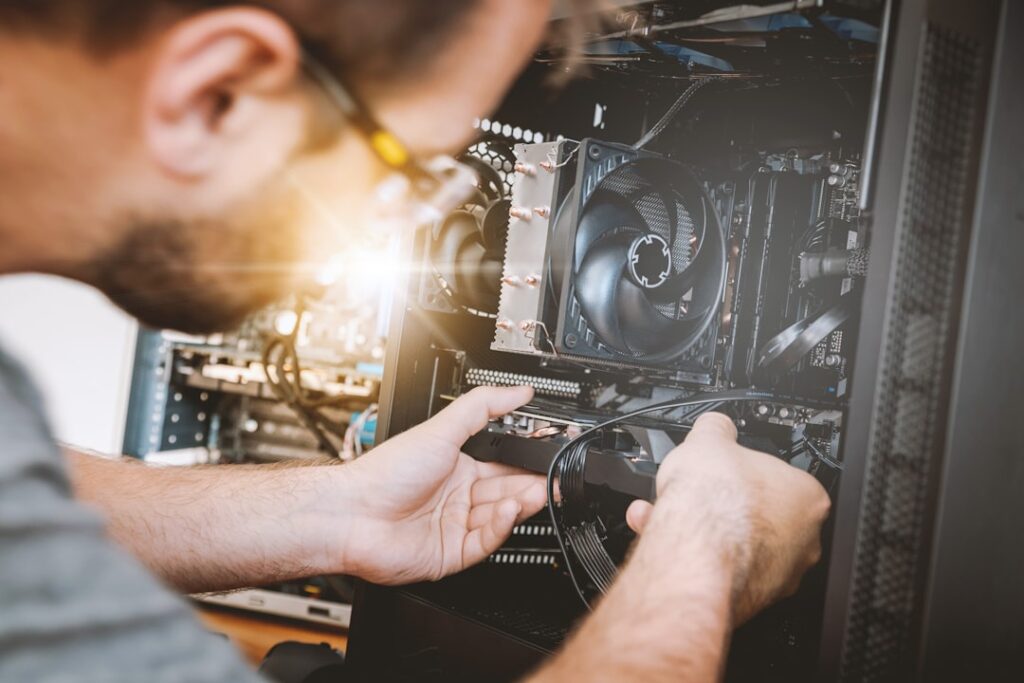
- Reseat memory sticks if your PC was recently moved or upgraded
Memory-related BSODs are especially common on older systems and custom-built PCs. For more technical troubleshooting and testing your memory, please contact G2 computer Care.
4. Keep Your Storage Healthy
Failing hard drives or SSDs can cause Windows to crash without warning.
What helps:
- Keep at least 15–20% free space on your main drive
- Run occasional disk checks
- Replace aging hard drives before they fail
- Use SSDs when possible—they’re faster and more reliable
- Use an external drive for additional data storage
If your PC is slow and crashing, storage issues may be the root cause. We do Data Transfers!
5. Avoid Overheating
Overheating forces your system to shut down or crash to protect itself.
Prevent heat-related BSODs by:
- Keeping vents clear of dust
- Cleaning fans periodically
- Making sure laptops aren’t used on soft surfaces like beds or couches
- Replacing old thermal paste on older desktops
If your PC sounds like a jet engine before crashing, heat is a likely suspect.
6. Be Careful With Software Installs
Poorly written software, especially system utilities, can destabilize Windows. When doing any software install, it’s best to ensure all operating system drivers and updates are thoroughly done. It is also helpful to do incremental updates to ensure your system is fully updated so your system does not crash or cause a BOSD.
Avoid:
- Registry cleaners and system “optimizers”
- Third party antivirus software
- Multiple antivirus programs running at once
Stick to reputable software and uninstall programs you no longer use.
7. Check for Malware
Malware can corrupt system files, drivers, and memory—leading to crashes.
Recommendations:
- Use Windows Security or a reputable antivirus
- Keep real-time protection enabled
- Avoid suspicious downloads and email attachments
A clean system is a stable system.
8. Don’t Ignore Early Warning Signs
Blue screens rarely come out of nowhere.
Red flags include:
- Frequent freezing or lockups
- Apps crashing unexpectedly
- Very slow startup or shutdown times
- Repeated error messages
Addressing these early can prevent a full system failure later. Contact G2 Computer Care today.
9. Back Up Regularly (Just in Case)
Even with prevention, hardware can fail.
Always:
- Keep automatic backups of important files
- Store backups off the PC (external drive or cloud)
Backups don’t prevent blue screens—but they prevent panic.
When to Get Professional Help
If blue screens continue despite basic troubleshooting, the issue may involve:
- Failing hardware
- Deep driver conflicts
- Corrupted Windows system files
At that point, professional diagnostics can save time, data, and frustration.
Final Thoughts
The Blue Screen of Death is avoidable when practicing what is considered best computing practices. It’s often preventable with good maintenance habits and early intervention.
Keeping your PC updated, clean, and backed up goes a long way toward avoiding unexpected crashes—and keeping your computer reliable for years to come.